VS Code C++ 开发与调试环境配置指南

Visual Studio Code(VS Code)是一款轻量级、跨平台的代码编辑器,凭借丰富的插件生态和强大的调试功能,成为众多 C++ 开发者的首选。本文将结合主流资源,介绍如何在 Linux(或 WSL)环境下,基于 VS Code 搭建高效的 C++ 开发与调试环境,并推荐常用插件和实用配置。
基础环境准备
-
安装 VS Code官方下载 或使用包管理器安装。
-
安装 C++ 编译器推荐 GCC 或 Clang。编译器安装,C++ 编程环境入门已经介绍过,在此不做过多赘述。本文仅以 Ubuntu 下 GCC 为例:
sudo apt update sudo apt install build-essential -
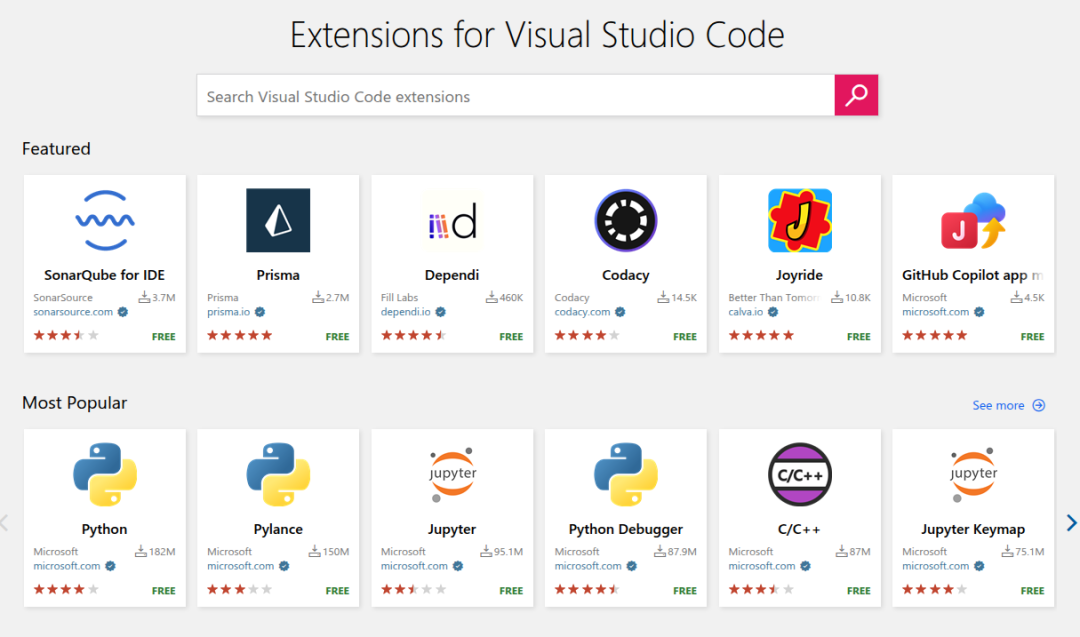
安装 VS Code 必备插件以下是一些常见的插件推荐
-
-
C/C++ (ms-vscode.cpptools): 微软官方,代码补全、语法高亮、调试支持。
-
Better Comments (aaron-bond.better-comments): 注释显示不同的颜色。
-
Clang-Format (xaver.clang-format): 代码格式化,支持 .clang-format配置。
-
indent-rainbow (oderwat.indent-rainbow): 通过颜色,一眼区分缩进。
-
CMake Tools (ms-vscode.cmake-tools): CMake 项目管理与构建。
-
CodeLLDB (vadimcn.vscode-lldb): LLDB 调试器支持,适合 macOS 或 Clang 用户。
-
Better C++ Syntax (jeff-hykin.better-cpp-syntax): 增强语法高亮。
-
Bracket Pair Color DLW (BracketPairColorDLW.bracket-pair-color-dlw): 括号配对高亮。
-
GitLens (eamodio.gitlens): Git 集成与代码历史查看。
-
TODO Highlight (wayou.vscode-todo-highlight): 高亮 TODO、FIXME 等注释。
-
Bookmarks (alefragnani.Bookmarks): 代码书签,快速定位。
-
Remote - SSH (ms-vscode-remote.remote-ssh): 远程开发支持。
-
Copilot (GitHub.copilot): 开源免费的 AI 助手
-
你可以选择手动选择某个插件安装,也可以在命令行一键安装,比如 C/C++插件:
code --install-extension ms-vscode.cpptools
核心配置文件说明
用户设置(settings.json)
settings.json 位于~/.config/Code/User/settings.json。它是 VS Code 的用户或工作区配置文件,用于设置编辑器行为、插件参数和开发环境选项。例如,可以配置缩进宽度、自动格式化、C++ 编译器路径、智能感知模式、代码高亮、格式化风格等。通过自定义 settings.json,可以让 VS Code 更好地适应个人或团队的开发习惯,提升开发效率和代码规范性。 路径:
常用配置示例:
{
    // workbench
    "workbench.editor.enablePreview": false,
    "workbench.editor.enablePreviewFromQuickOpen": false,
    "workbench.sideBar.location": "left",
    "workbench.tree.indent": 15,
    // system
    "json.maxItemsComputed": 80000,
    "terminal.integrated.fontSize": 16,
    // editor
    // editor
    "editor.formatOnSave": true,
    "editor.fontSize": 19,
    "editor.renderWhitespace": "all",
    "editor.renderControlCharacters": true,
    "editor.detectIndentation": false,
    "editor.rename.enablePreview": false,
    "editor.smoothScrolling": false,
    "editor.cursorSmoothCaretAnimation": "off",
    "editor.minimap.maxColumn": 30,
    "editor.minimap.renderCharacters": false,
    "editor.suggest.insertMode": "replace",
    "editor.wordWrap": "on",
    "editor.autoIndent": "brackets",
    "[cpp]": {
        "editor.defaultFormatter": "xaver.clang-format"
    },
    "editor.quickSuggestions": {
        "other": false,
        "comments": false,
        "strings": false
    },
    "editor.parameterHints.enabled": false,
    "editor.rulers": [
        120,
        200
    ],
    "editor.lineHeight": 24,
    "editor.wordSeparators": "`~!@#$%^&*()-=+[{]}\\|;:'\",.<>/?·~!¥…()—【】、;:‘’“”,。《》? ",
    // explorer
    "explorer.confirmDragAndDrop": false,
    "explorer.confirmDelete": false,
    "editor.largeFileOptimizations": false,
    // files
    "files.autoSave": "afterDelay",
    "files.trimFinalNewlines": true,
    "files.trimTrailingWhitespace": true,
    "files.insertFinalNewline": true,
    "files.autoGuessEncoding": true,
    // git
    "git.detectSubmodulesLimit": 300,
    "git.autofetch": false,
    "gitlens.codeLens.scopes": [
        "document"
    ],
    "gitlens.advanced.messages": {
        "suppressCommitHasNoPreviousCommitWarning": false,
        "suppressCommitNotFoundWarning": false,
        "suppressFileNotUnderSourceControlWarning": true,
        "suppressGitDisabledWarning": false,
        "suppressGitVersionWarning": false,
        "suppressLineUncommittedWarning": false,
        "suppressNoRepositoryWarning": false,
    },
    "gitlens.integrations.enabled": true,
    //extensions
    "extensions.ignoreRecommendations": true,
    // clang-format
    "clang-format.executable": "/usr/bin/clang-format-14",
    // todo-tree
    "todo-tree.general.tags": [
        "BUG",
        "HACK",
        "FIXME",
        "TODO",
        "XXX",
        "[ ]",
        "[x]"
    ],
    "todo-tree.regex.regex": "(//|#|<!--|;|/\\*|^|^\\s*(-|\\d+.))\\s*($TAGS)",
    "security.workspace.trust.untrustedFiles": "newWindow",
    "security.workspace.trust.banner": "never",
    "cmake.pinnedCommands": [
        "workbench.action.tasks.configureTaskRunner",
        "workbench.action.tasks.runTask"
    ],
    "explorer.confirmPasteNative": false,
}
说明:
-
自动格式化、智能感知、指定编译器路径等。
-
clang-format.style设置为file,表示使用项目根目录或指定路径下的.clang-format文件。 -
启用 Error Lens、Bracket Pair Colorizer 等插件功能。
代码片段(cpp.json)
cpp.json 位于~/.config/Code/User/snippets/cpp.json, 它是 VS Code 的 C++ 代码片段(snippets)配置文件。它用于自定义常用代码模板,提升编写效率。例如,输入特定前缀(如 main、cerr、///),即可快速插入主函数、调试输出、Doxygen 注释等代码块。这样可以减少重复输入,提高开发速度和规范性。每个片段可自定义前缀、内容和描述,适合个人或团队常用代码风格。
示例片段:
{
    "main": {
        "prefix": "main",
        "body": [
            "#include <iostream>",
            "",
            "int main() {",
            "    std::cout << \"Hello, World!\" << std::endl;",
            "    return 0;",
            "}"
        ],
        "description": "C++ main function"
    },
    "Print to console": {
        "prefix": "cerr",
        "body": [
            "std::cerr << \" ${1:var} = \" << $1 << std::endl;",
        ],
        "description": "Log output to console"
    },
    "doxgen comment": {
        "prefix": "///",
        "body": [
            "///",
            "/// @brief $1",
            "/// @return $2",
            "///"
        ],
        "description": "Log output to console"
    }
}
说明:
-
输入
main自动补全主函数模板,提升编码效率。 -
输入
cerr自动补全打印命令,提升编码效率。 -
输入
///自动补全doxgen注释,提升编码效率。
代码格式化(.clang-format)
.clang-format 是代码格式化配置文件,专用于定义 C++(及其他语言)代码的排版风格。每个项目的工程目录下面都需要有一个 launch.json。它可以设置缩进、括号换行、对齐、空格、注释等格式规则。 VS Code 配合 Clang-Format 插件,保存或手动格式化时会自动按照 .clang-format 文件中的规范整理代码,保证团队代码风格统一,提高代码可读性和维护性。
核心配置(部分摘录),更多配置请参见 https://github.com/sky-co/env_config/blob/main/.clang-format:
Language:        Cpp
IndentWidth:     4
AllowShortFunctionsOnASingleLine: All
BreakBeforeBraces: Custom
AlignTrailingComments: true
ColumnLimit:     0
Standard:        Auto
说明:
-
统一代码风格,保存时自动格式化,提升团队协作效率。
调试配置(launch.json)
launch.json 位于<project_path>/.vscode/launch.json 是 VS Code 的调试配置文件,用于定义调试会话的参数。它指定要调试的程序路径、调试器类型(如 gdb 或 lldb)、启动方式、工作目录、命令行参数等。每个项目的工程目录下面都需要有一个 launch.json。 通过配置 launch.json,可以实现断点调试、变量查看、单步执行等功能,满足多项目或多文件的调试需求。每个调试配置可自定义名称,方便快速切换和管理不同的调试场景。
典型配置:
{
    // Use IntelliSense to learn about possible attributes.
    // Hover to view descriptions of existing attributes.
    // For more information, visit: https://go.microsoft.com/fwlink/?linkid=830387
    "version": "0.2.0",
    "configurations": [
        {
            "name": "main",
            "type": "cppdbg",
            "request": "launch",
            "program": "${workspaceRoot}/main",
            "args": [],
            "stopAtEntry": false,
            "cwd": "${workspaceRoot}",
            "environment": [],
            "externalConsole": false,
            "MIMode": "gdb",
            "setupCommands": [
                {
                    "description": "Enable pretty-printing for gdb",
                    "text": "-enable-pretty-printing",
                    "ignoreFailures": true
                },
                {
                    "environment-cd": "${workspaceRoot}",
                    "description": "location of source files",
                    "text": "set directories ${workspaceRoot}",
                    "ignoreFailures": true
                }
            ],
            "miDebuggerPath": "/usr/bin/gdb",
        },
    ]
}
说明:
-
支持断点调试、变量查看、单步执行等功能。
-
program指定可执行文件路径,MIMode选择调试器(gdb 或 lldb)。
调试示例
目前为止,关于 vscode 的debug环境配置已经完成,剩下的主题风格选择和图标样式之类的就属于个人喜好问题,在此不做讨论。基于前文C++ 编程环境入门 提到的第一个 C++ 程序,我们在此做个简单的debug演示。
代码如下:
// hello.cpp
#include <iostream>

int main() {
    int test = 5; // 为演示 watch 的作用
    std::cout << "Hello World!" << std::endl;
}
编译二进制文件
首先,确保你的 C++ 源文件(如 hello.cpp)已经准备好。使用如下命令编译生成带调试信息的可执行文件:
g++ -g -O0 Hello.cpp -o hello
-
-g选项用于生成调试信息,便于调试器识别源码行号和变量。 -
-O0禁用优化,保证调试时变量和流程与源码一致。
配置 launch.json
在项目根目录下的 .vscode 文件夹内新建或编辑 launch.json,配置调试参数。
典型配置如下:
{
    "version": "0.2.0",
    "configurations": [
        {
            "name": "Debug hello",
            "type": "cppdbg",
            "request": "launch",
            "program": "${workspaceFolder}/hello",
            "args": [],
            "stopAtEntry": false,
            "cwd": "${workspaceFolder}",
            "environment": [],
            "externalConsole": false,
            "MIMode": "gdb",
            "miDebuggerPath": "/usr/bin/gdb"
        }
    ]
}
-
program指定可执行文件路径。 -
MIMode选择调试器类型(GDB 或 LLDB)。 -
其他参数可根据实际需求调整。
打断点并启动调试
-
在 VS Code 编辑器中打开
hello.cpp,点击行号左侧即可设置断点(红点)。 -
按
F5或点击左侧“运行与调试”面板中的“启动调试”按钮。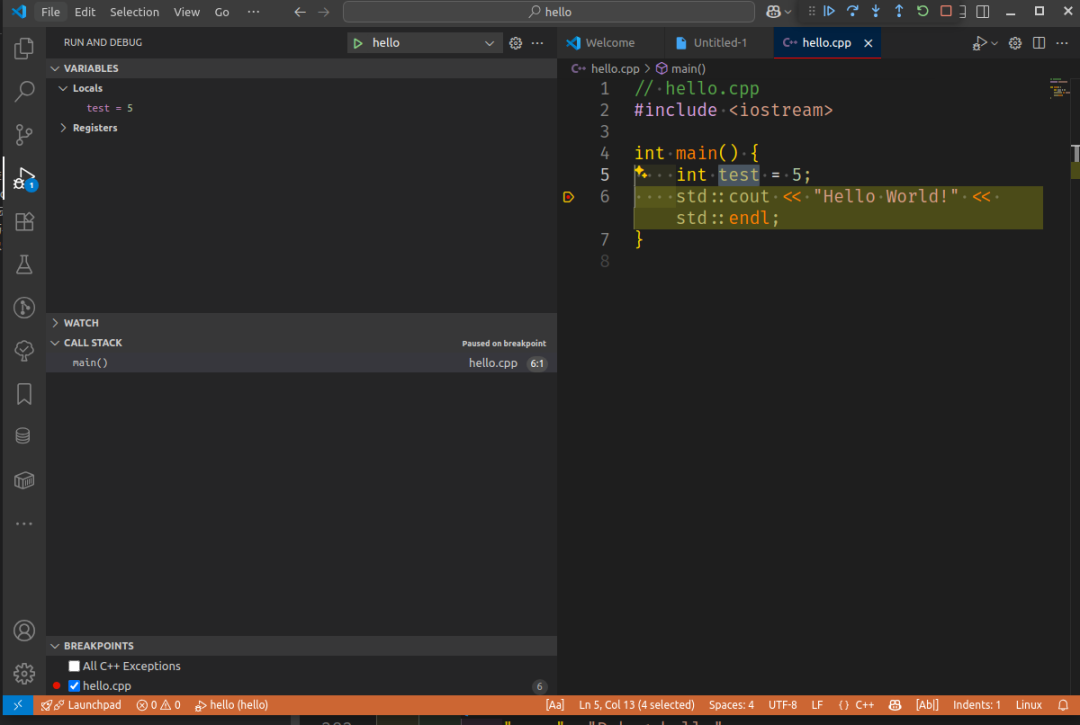
-
程序会在断点处暂停,可以查看变量、调用栈、逐步执行(F10/F11)、表达式求值等。
-
通过右键"Add Watch"可以将选中的感兴趣变量加入左侧的watch列表,方便观测。
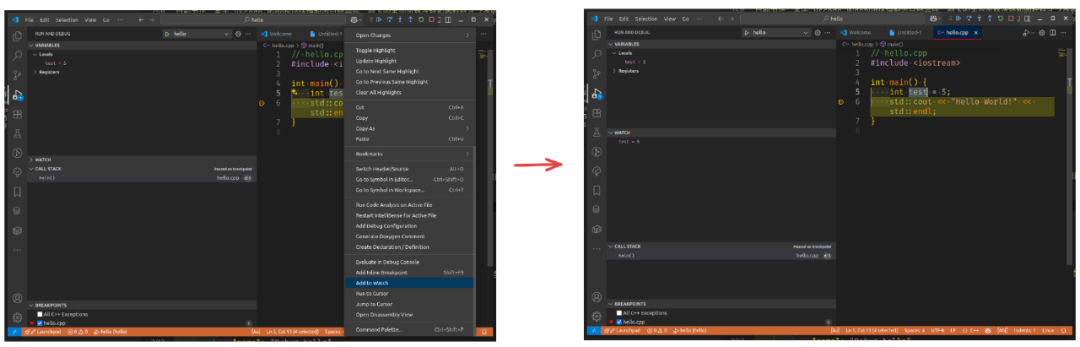
-
通过“调试控制台”可输入 GDB 命令或表达式,辅助排查问题。
调试过程中常用操作:
-
F5:启动/继续
-
F9:设置/取消断点
-
F10:逐过程(Step Over)
-
F11:逐语句(Step Into)
-
Shift+F5:停止调试
进阶技巧与常见问题
-
远程调试:可通过 Remote-SSH/WSL 插件在远程服务器或 WSL 环境下调试。
-
多文件/多项目调试:launch.json 支持多配置,灵活切换调试目标。
-
变量监视与表达式求值:可在“变量”面板添加监视表达式,实时查看变量值。
-
断点条件:右键断点可设置条件断点,仅在满足条件时暂停。
-
调试性能问题:结合 perf、valgrind 等工具定位性能瓶颈。
-
常见问题:
-
编译时未加
-g导致无法断点调试。 -
优化级别过高(如
-O2)导致变量不可见。 -
launch.json 路径或参数配置错误,调试器无法启动。
-
通过上述步骤,你可以在 VS Code 下高效完成 C++ 程序的编译、断点调试与问题定位
进阶技巧与常见问题
-
远程开发:通过 Remote - WSL/SSH/Containers 插件,可在 WSL、远程服务器或容器中无缝开发和调试 C++ 项目。
-
CMake 项目管理:CMake Tools 插件支持自动检测 CMakeLists.txt,便于多平台构建和调试。
-
代码静态检查:可集成 cpplint、clang-tidy 等工具,提升代码质量。
-
多文件/多项目调试:launch.json 支持多配置,灵活切换调试目标。
-
头文件自动补全与跳转:Include Autocomplete、C/C++ 插件支持头文件智能补全和跳转。
总结
本文系统介绍了在 Linux/WSL 环境下,使用 VS Code 搭建高效 C++ 开发与调试环境的全过程,包括基础软件安装、常用插件推荐、核心配置文件说明、代码格式化、调试配置及实际调试操作演示。通过合理配置 settings.json、launch.json 以及集成 Clang-Format、CMake Tools 等插件,开发者可以实现代码自动补全、格式化、断点调试、远程开发等功能,极大提升开发效率和代码质量。希望本文能够为 C++ 开发者在 VS Code 下的日常开发、调试和项目管理提供帮助。
参考资源
-
VS Code 官方 C++ 配置教程
-
Ubuntu 环境配置
-
Visual Studio Code tips and tricks

这里是“一人公司”的成长家园。我们提供从产品曝光、技术变现到法律财税的全栈内容,并连接云服务、办公空间等稀缺资源,助你专注创造,无忧运营。
更多推荐
 7
7 0
0- 0


 已为社区贡献1条内容

所有评论(0)